How to move from Apple Notes to Pinto Notes


I built Pinto Notes to feel like Apple Notes, so moving should be easy too. On your Mac, you bring every note over in one go, folders included. Nothing in Apple Notes changes, so you can take your time.
Before you start
- A Mac with macOS 26 or later, and your notes in the Notes app on it.
- Pinto Notes, free from the download page. Open it and sign in, so your notes sync.
Get Pinto Notes for your Mac first.
It's free. Install it, sign in, then come back here for the import.
Download Pinto Notes for MacPinto Notes is for iPhone and Mac. Send yourself the link to open on one.
Send myself the linkFree, for macOS 26 or later. Importing from Apple Notes only reads it; nothing there changes.
Free, for iOS 26 or later.
Import everything on your Mac

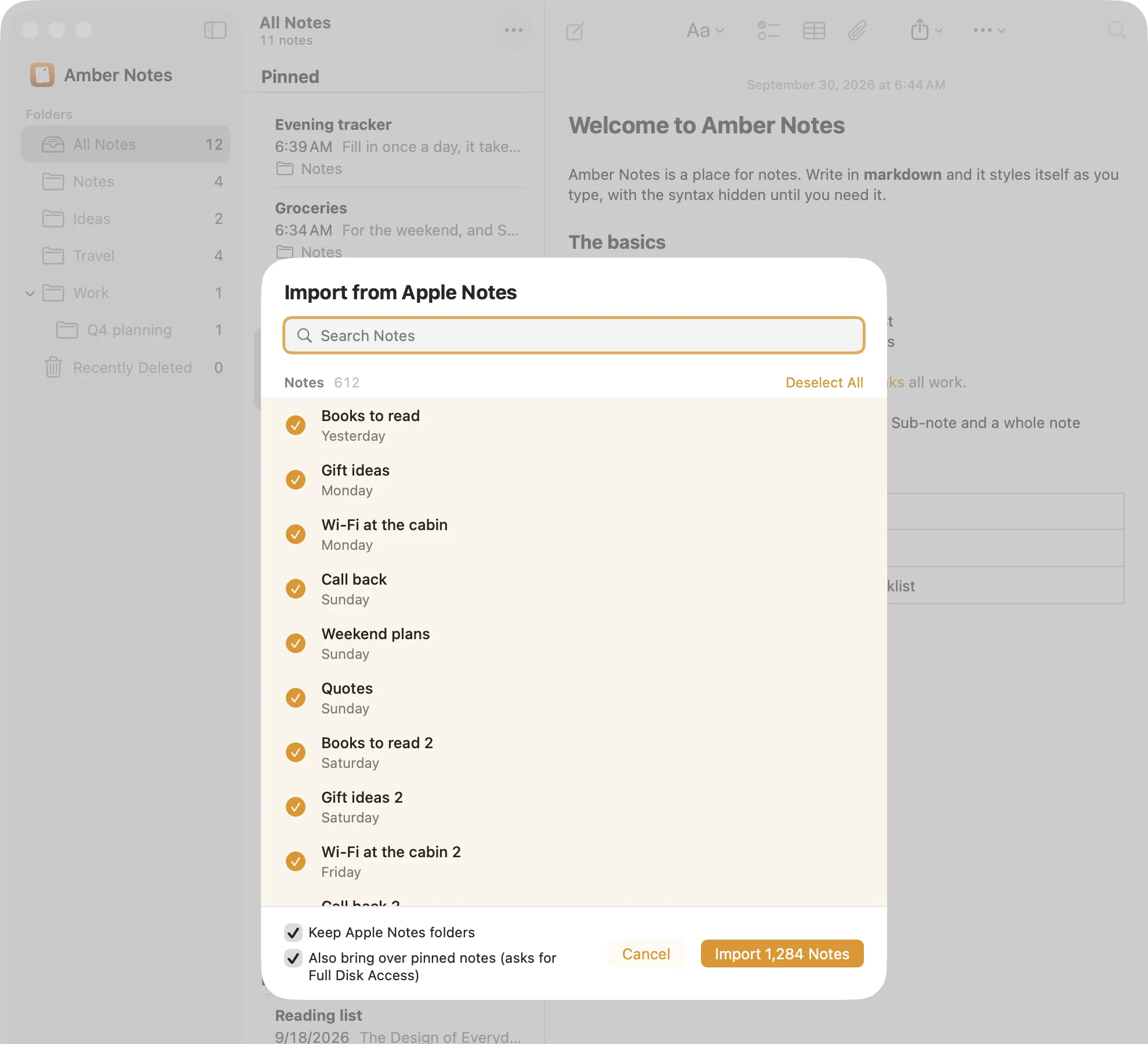
- In Pinto Notes, choose File, then Import from Apple Notes.
- The first time, macOS asks whether Pinto Notes may control Notes. Choose Allow. That's how it reads your notes. If you chose Don't Allow by mistake, turn it on in System Settings, Privacy & Security, Automation.
- Every note in every folder is listed and picked, with a total that matches Apple Notes. Import everything, or untick what you don't want. You can search the list.
- Choose Import. You can watch it count through your notes. If a note didn't come, the sheet stays open and names it, with the reason.
What comes along

- Your notes, in their folders, with folders inside folders kept, and the day each note was written and last changed.
- Text formatting, lists, tables and empty lines as you wrote them.
- Pictures, as files in the note, where they were.
- Checklists with their ticks, and pins, when Pinto Notes has Full Disk Access. It never asks for it; without it, checklists arrive as bullet lists. The sheet's How to keep them explains where to turn it on.
Other attachments, such as PDFs, stay in Apple Notes. So do locked notes, which the import can't read: they're listed as Locked in Apple Notes (unlock them first; if you've lost the password, see forgot your Apple Notes password). Recently Deleted isn't read. Your notes in Apple Notes stay exactly as they were, and importing again later brings only what isn't here yet.
On your iPhone
Everything you import on your Mac shows up on your iPhone a second later, once you sign in there with the same account. To bring over a single note from your iPhone, open it in Apple Notes, tap Share and choose Pinto Notes.
After the move
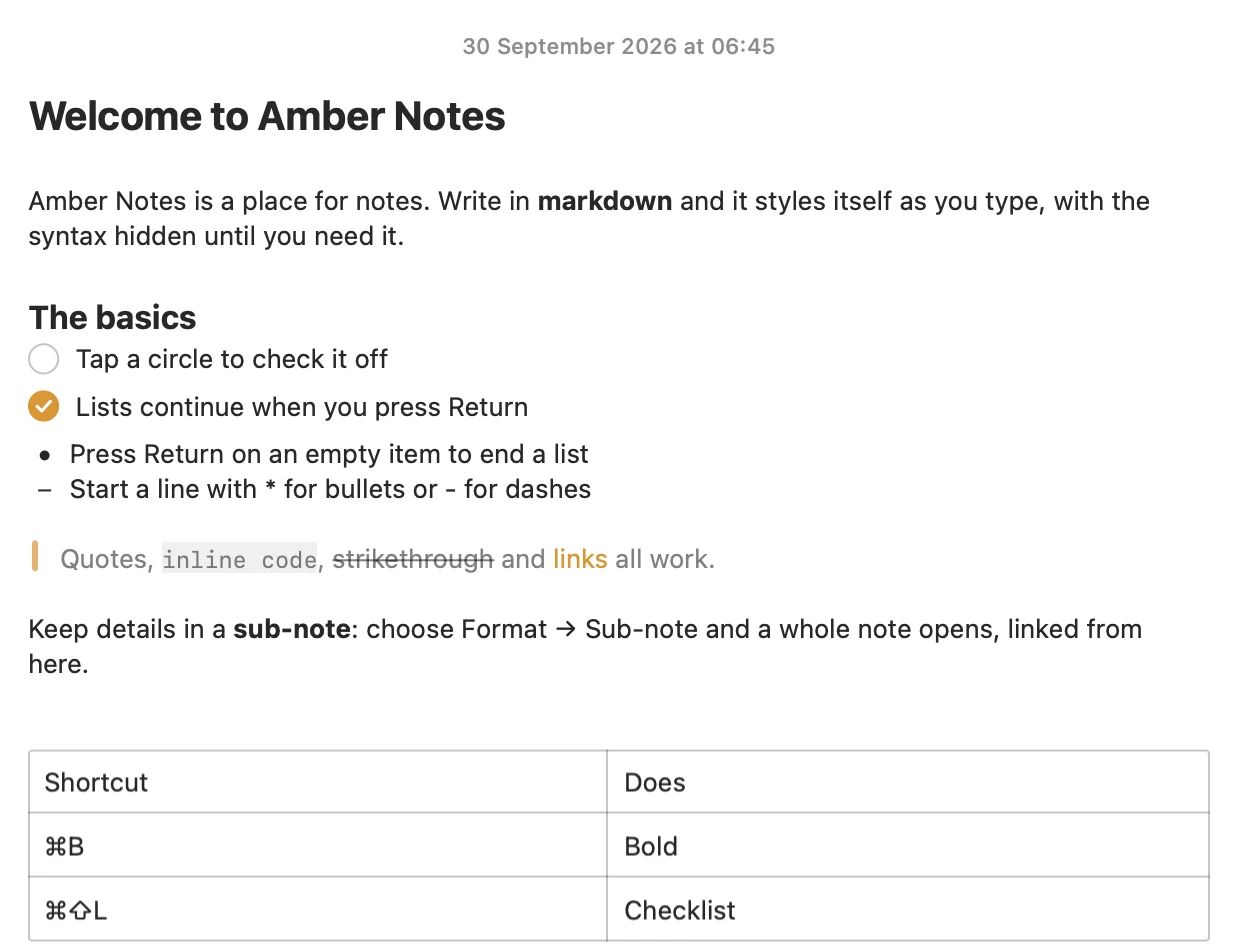
- If you know Apple Notes, you already know Pinto Notes: folders, a note list by date, pins, search and Recently Deleted work the same way.
- Your notes are stored as markdown underneath, formatted on screen.
- Using Claude? Can Claude read your Apple Notes? compares staying in Apple Notes with moving.
- Want ChatGPT or Claude to use them? Connect ChatGPT or Claude to your notes. For a coding agent, see using your notes from Claude Code and Codex.
- Want a copy of your Apple Notes as files too? Export Apple Notes to Markdown covers the built-in export and tools for every note at once.
Questions
Does importing change or delete anything in Apple Notes?
No. The import only reads Apple Notes. Your notes there stay exactly as they were, so you can keep using both.
Can I import again later without getting duplicates?
Yes. Notes that are already in Pinto Notes, by title and date, are marked Already imported and skipped, so importing again brings only what's missing.
Can I export Apple Notes as markdown instead?
On macOS 26, Apple Notes can export a note as markdown from the File menu, one note at a time. Pinto Notes imports everything you pick in one go, and keeps your notes as markdown from then on.
Checked against the app on .