Apple Notes flashcards: a template to study with
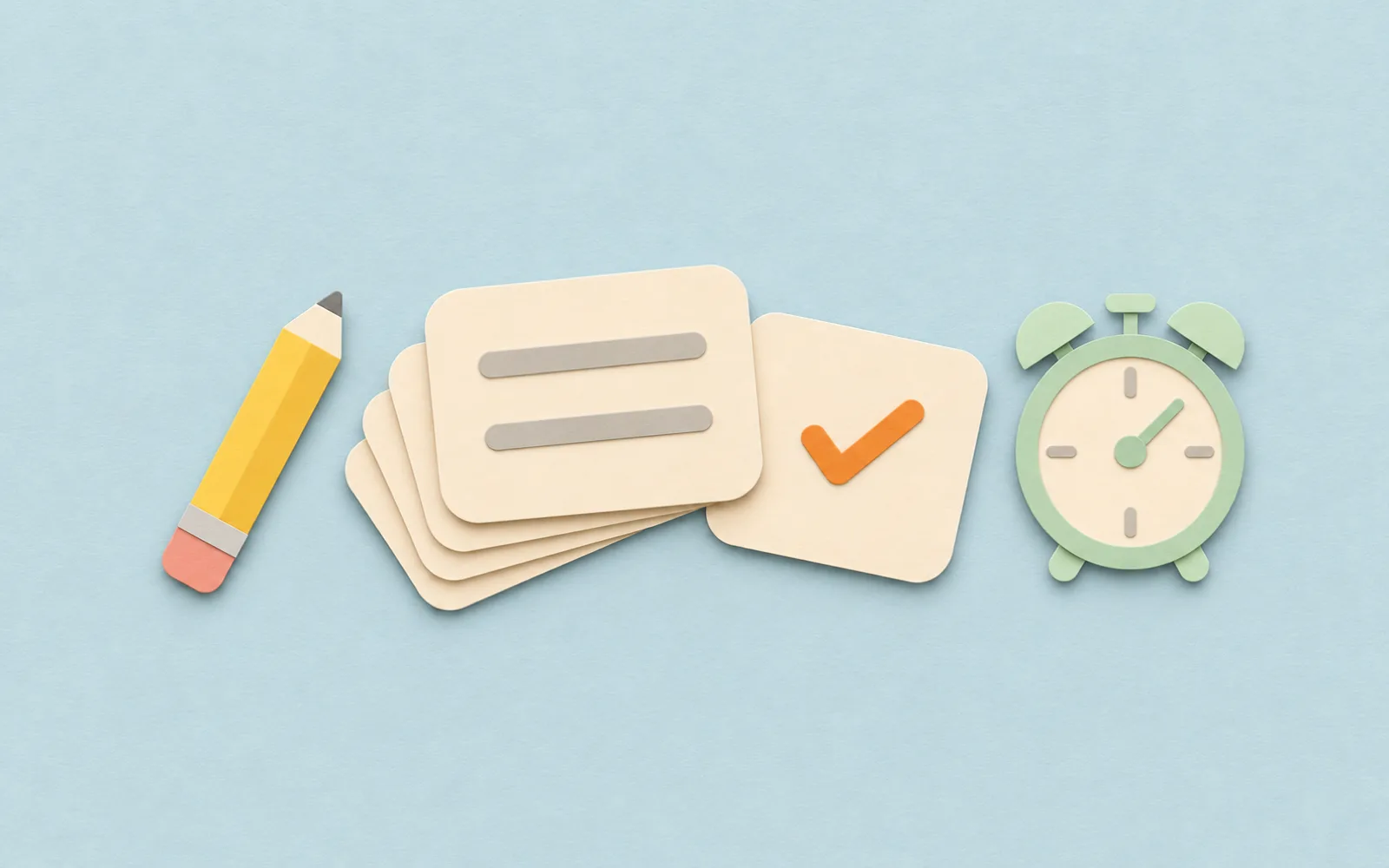
Flashcards work because they make you answer before you see the answer. Apple Notes has no flashcard mode, but a two-column table gets close. Here's a flashcard template for Apple Notes to paste in, how to study with it, and where it stops.

The template: one table per topic
Each row is one card. Keep the question short and the answer shorter: a card that takes a paragraph to answer is two cards. The line under the table is where the missed cards go, so the next session starts with them.
Flashcards for Apple Notes
Cell respiration flashcards

Question	Answer
What does the cell break glucose down to make?	ATP, the cell's energy
What are the three stages?	Glycolysis, the Krebs cycle, the electron transport chain
Which stage makes most of the ATP?	The electron transport chain
Where does the electron transport chain happen?	In the mitochondria

Missed this time
Each table line has a tab between the question and the answer. Paste it, then turn those lines into a table.
Set it up
- Mac
- Paste, then make the table. Paste the template into a new note, select the five lines from Question to the last answer, and press the Table button. Every tab becomes a column, so you get Question and Answer side by side.
- Or start empty. Choose Format, Table for two rows and two columns. Type Question and Answer in the first row, and Tab in the last cell adds the next card.
- Keep the questions short. Notes sets the column widths itself and you can't drag them, so a long question squeezes the answer.
- One note per topic. Keep them in a Study folder, add a tag like #biology to each, and choose File, Duplicate Note to start the next topic with the same layout.
A list of “question: answer” lines works too, but the answer sits in plain sight next to the question. The table lets you hide a whole column at once. Tables in Apple Notes covers everything a table in Notes can and can't do.
Study with it
- Cover the right column. Hold a card or your hand over the answers and say each one out loud before you look.
- Write down what you missed. Type the question under Missed this time and press the checklist button. Tick it once you get it right in a later session.
- Start with the misses. Next time, go through the checklist before the table. Those are the cards that need the practice.
- Reset for the next round. When every miss is ticked, choose Format, More, Uncheck All, or delete the ticked lines and start fresh.
- Find a card by any word. Search reads every word in every note, so “mitochondria” finds the card wherever it is.
If you take notes in class, Cornell notes put questions right beside your notes, which is a flashcard deck built as you write. More notes to paste in are in Apple Notes templates.
You can also keep scanned handouts and recorded lectures in Notes during the term.
Where flashcards in Notes stop
- Nothing is due. Notes doesn't know when you last saw a card, so you either study every card every time or keep track yourself.
- No flip. The answer is always on the page. Covering it works, but it's easy to glance.
- No shuffle. Tables don't sort, so you learn the order of the cards along with the answers.
- Making the cards is the slow part. Turning a chapter into good questions takes longer than studying them.
For a test next week with twenty cards, a table in Notes is enough. For a whole course, the hard part is knowing which cards to study today, and Notes leaves that to you.
Flashcards that come back when they're due
Pinto Notes looks and works like Apple Notes on iPhone and Mac, and a note can also be a small app. The free study notes and flashcards template is one: your notes under a heading per topic, and a study app that shows how many cards are due today. Press Study now and it asks one card at a time. Show answer, then say how it went (Again, Hard, Good or Easy), and each button says when the card comes back. Cards you miss come back sooner; cards you know wait longer.
You can add, edit and delete every card in the app yourself, or paste a list of question and answer lines and it makes the cards. With ChatGPT or Claude connected, paste your lecture notes or a chapter and it makes five to ten cards next to yours. Say “quiz me on biology, ten cards” and it asks them in the chat, one at a time without the answer, and updates each card the way the app does. Ask “which cards do I keep missing?” and it reads the deck to answer. Connecting ChatGPT takes a minute.
The study notes you already keep in Apple Notes come over in one import on your Mac, and Apple Notes isn't changed.
Questions
Can you make flashcards in Apple Notes?
Yes, with a two-column table: the question on the left, the answer on the right, one row per card. Notes can't hide an answer or flip a card, so you cover the right column to test yourself.
Does Apple Notes have spaced repetition?
No. Notes doesn't know which cards are due or which ones you missed. A checklist of missed cards under the table, studied first next time, is the closest you get by hand.
Can I shuffle flashcards in Apple Notes?
No. Tables in Notes don't sort or shuffle, so the cards come in the order you typed them. Starting from the bottom row now and then is the simple workaround.
Is there a flashcard app that works like Apple Notes?
Pinto Notes looks and works like Apple Notes and has a free study notes and flashcards template with its own study app. Paste your notes into ChatGPT or Claude and it makes the cards; the app shows the ones that are due, one at a time.
Checked against the app on .