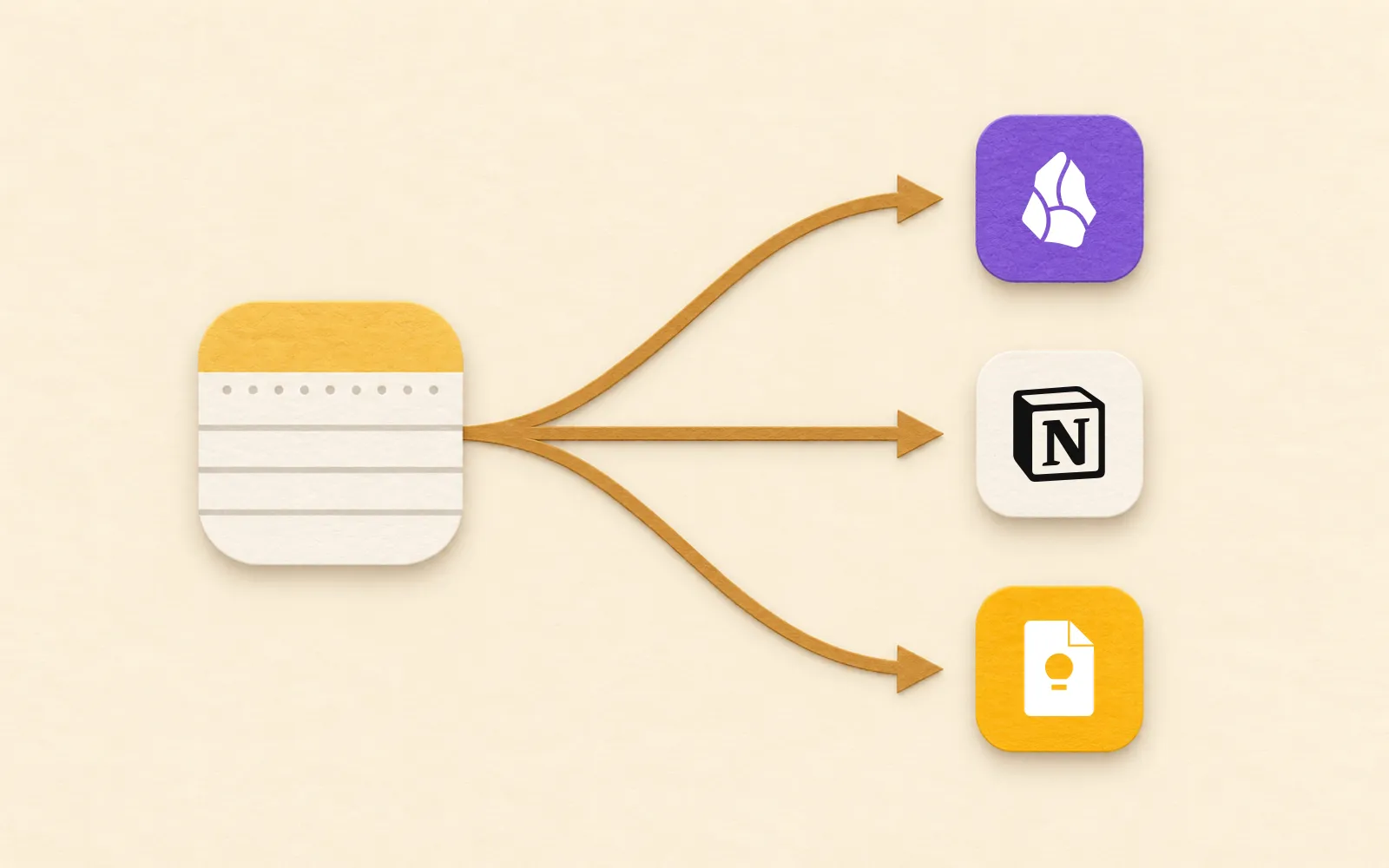
Google Keep alternative for iPhone and Mac
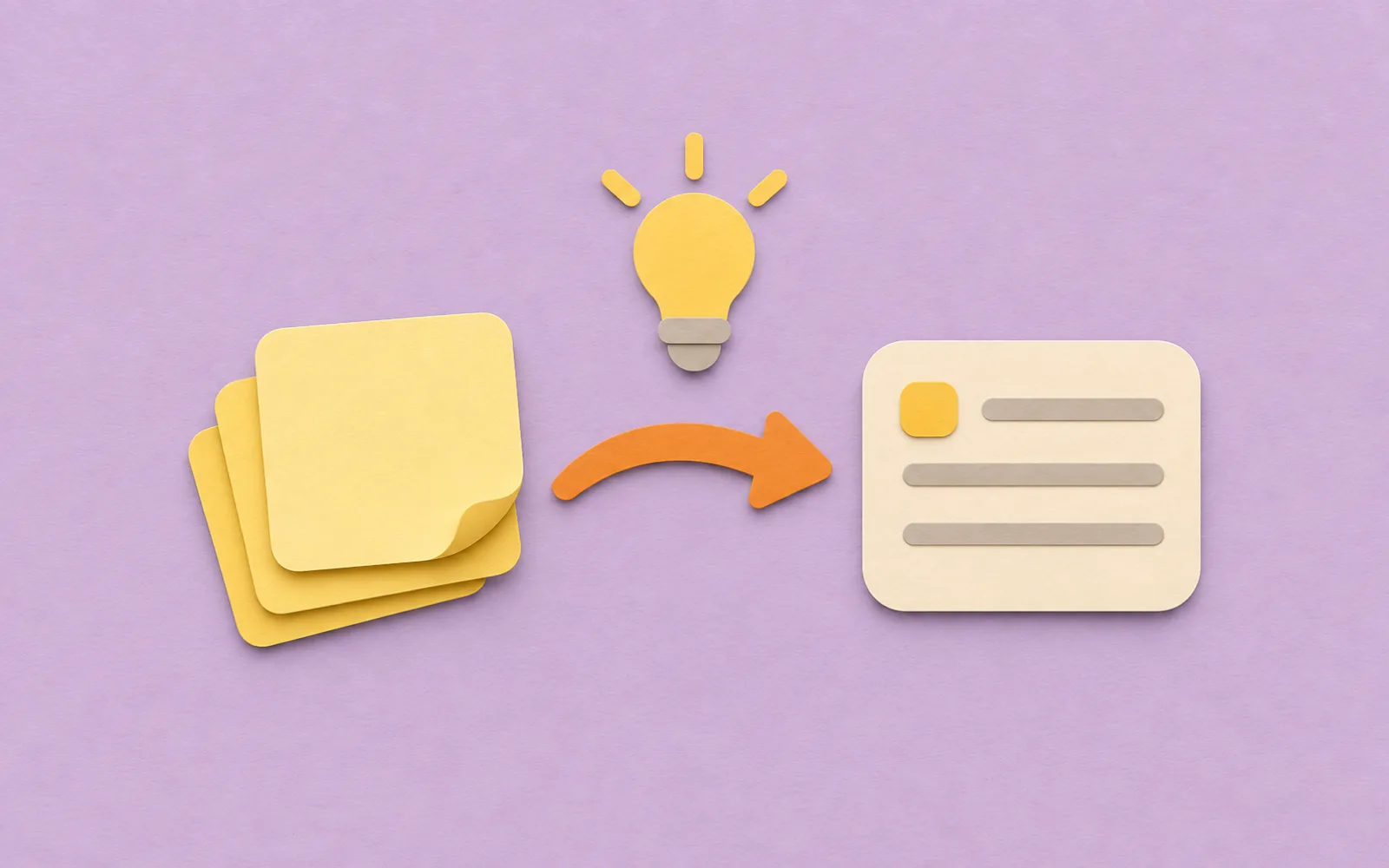
Pinto Notes is a free Google Keep alternative for iPhone and Mac, with a direct Google Takeout import. Stay with Keep if you need Android access or want to keep using shared Google lists with the same people.
Choose by the notes you want to keep using
Pinto Notes looks and works like Apple Notes. It suits personal notes you want to bring into that kind of editor, especially if you also want ChatGPT or Claude to work in them. It runs on Mac and iPhone only. There is no Windows, Android or web app. If you need a browser editor, Keep already provides one.
Apple Notes is another option for folders, checklists and tables. Our Apple Notes vs Google Keep comparison covers that choice. If you have already chosen Apple Notes, use the Google Keep to Apple Notes guide for that move. The checks below are for Pinto's direct Keep import.
When staying with Google Keep makes sense
Keep has an iPhone app, an Android app and browser access at keep.google.com. Google documents those routes in its Keep guide. If you use an Android phone alongside a Mac, Pinto cannot replace Keep on both.
A shared shopping list is another reason to stay. Keep lets collaborators edit a note, as described in Google's sharing guide. Importing a copy into Pinto does not bring that shared list's permissions with it. You can move your personal notes and keep a shared list in Keep until the people using it agree on a move.
What Pinto keeps from a Takeout download
Google's export guide lists what goes into the download. The receiving app decides what it can use. Pinto's importer handles the following.
| In Google Keep | After importing into Pinto Notes |
|---|---|
| Text and checklists | Note text and ticked or unticked checklist states come across |
| Labels | Folders by default, or tags if you choose |
| Pins and dates | Pinned state and available creation and edit dates come across |
| Images | Imported as attachments when the files are in the download |
| Archived notes | Excluded by default; choose to include them in an Archive folder |
| Notes in the trash | Skipped |
| Colours, drawings and reminders | Left out; the summary reports notes that had them |
| Collaborator permissions | Do not transfer to the imported copy |
The label choice matters if one note has several labels. With Folders selected, its first label becomes its folder, and the other labels become tags. With Tags selected, all its labels become tags. For example, a note labelled Home and Repairs goes in Home with a Repairs tag if Home is its first label.
If red means urgent in your Keep notes, write that meaning into the important notes before moving. Save drawings you need separately. Put any reminders you still need in the app you will use for alerts. An imported checklist does not preserve a reminder attached to it.
Bring the download into Pinto on a Mac
On your Mac, open Pinto Notes' File menu and choose Google Keep. Pinto Notes opens Google's download page with only Keep ticked. Drop the download in, and your labels become folders. The import guide shows where to start.
In Google Takeout, select Next step, choose a one-time export and ZIP, then Create export. Download the archive when Google emails you. Google says preparing it can take a few minutes to a few days. Its download instructions also confirm that downloading your data does not delete it from Google.
Pinto accepts the Takeout ZIP, the extracted Takeout folder or its Keep folder. Keep the image files beside the note files if you use the extracted folder. Choose whether labels become Folders or Tags, and whether to include archived notes. Review the import summary before comparing your notes.
Check the notes you rely on before leaving Keep
Compare an imported note with its original in Keep. Include a long note, a checklist with completed items and a note with an image. Then check one with several labels. Those examples tell you more than a total note count alone.
Keep import review
Google Keep replacement check
- [ ] Compare a long note with its original in Keep
- [ ] Check both ticked and unticked list items
- [ ] Open an imported image
- [ ] Check a note with two labels
- [ ] Compare a pinned note and its dates
- [ ] Check archived notes if I chose to import them
- [ ] Record any meaning I gave to note colours
- [ ] Save important drawings separately
- [ ] Put any needed reminders in the app I will use for alerts
- [ ] Keep shared lists in Keep until everyone agrees to move
- [ ] Keep the original Takeout download
Copy this checklist to keep with your Takeout download. Check your own notes before deciding to leave Keep.
This is an import of an exported copy. It does not keep the two apps connected. Once you are happy with the imported notes, choose which app you will edit each note in so the copies do not drift apart.
Let your AI work with the imported notes
Once you connect ChatGPT or Claude and approve the connection, it can read and edit your Pinto notes. You can ask it to find an imported project note and add a short list of next steps. Open the note and check the result, especially any dates or tasks it inferred.
Pinto keeps every earlier version as you edit a note in Pinto. That history covers your changes there, including AI edits. It does not recreate versions from before the Keep import.
Questions
Can Pinto Notes import Google Keep labels as folders?
Yes. Labels become folders by default. A note goes in its first label's folder, and additional labels become tags. You can choose Tags instead to bring all labels in as tags. Check a note with several labels before deciding which organization you prefer.
Will my Keep colours and reminders appear in Pinto Notes?
No. Pinto's Keep importer leaves out colours, drawings and reminders. The import summary reports notes that had them. Keep the export, save important drawings separately and arrange any alerts you still need before leaving Keep.
Does a Takeout import keep Pinto Notes connected to Google Keep?
No. It imports an exported copy of your notes. Later edits in Keep do not automatically appear in Pinto, and edits in Pinto do not update Keep. Keep's collaborator permissions do not transfer with the imported notes.
Checked against the app on .