Joplin Notes alternative for Mac and iPhone
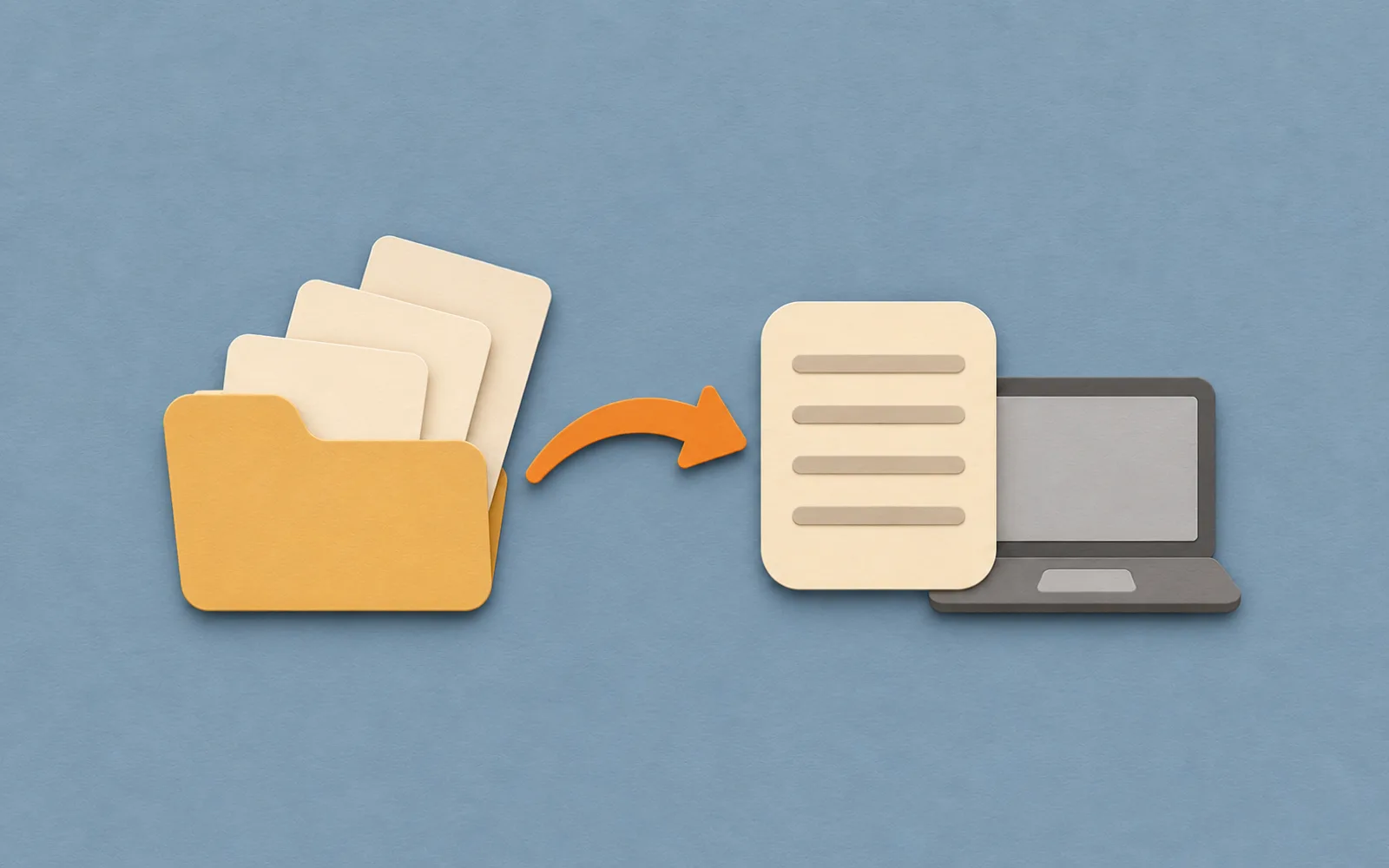
Pinto Notes is a Joplin alternative for Mac and iPhone if you want an editor that looks and works like Apple Notes. Stay with Joplin if you need Windows, Linux or Android.
Choose by the devices and editor you use
| You need | Joplin | Pinto Notes |
|---|---|---|
| Mac and iPhone | Available on both | Available on both |
| Windows, Linux or Android | Available on all three | No app for these platforms |
| Editing | Markdown and Rich Text editors | Looks and works like Apple Notes |
| An AI working in your notes | Local MCP through Web Clipper | Hosted connection for ChatGPT or Claude |
Joplin lists its platforms in the installation guide. Pinto Notes is Mac and iPhone only. It has no Windows, Linux, Android or web app. A Mac at home does not make it a replacement for Joplin on an Android phone or a Windows work computer.
Reasons to stay with Joplin
Joplin has both Markdown and Rich Text editors. Try Rich Text if seeing Markdown symbols is your main complaint. You may prefer it without moving your notes.
Keep Joplin if choosing your own sync service matters. Its sync guide lists options including Nextcloud, WebDAV and Dropbox. A Markdown import into Pinto does not transfer that setup. If you rely on Joplin plugins, check what each one does for you before moving. Importing its notes does not bring the plugin with them.
Joplin also has an MCP server for AI apps. It runs through the local Web Clipper service and supports searching, reading and, when enabled, creating or updating notes. If you like Joplin and only want Claude to use your notes, try that connection first.
Export Markdown for Pinto, keep JEX for Joplin
Joplin's export guide describes JEX as a backup format that preserves notes and metadata for reimport into Joplin. Keep one before you start. Pinto's route uses Markdown files, so make a separate export for it.
- Export a small notebook from Joplin as Markdown + Front Matter into its own folder. Include notes with the attachments and formatting you use most.
- Keep the whole exported folder together, including its resource files. Open a Markdown file in a text editor to check that the note text is there.
- On your Mac, open Pinto Notes and choose File, Import Markdown or Text. Choose the exported folder, or a .zip of it, and review the import before continuing.
Joplin's front matter guide explains the title, dates and tags stored above the note text. Pinto's importer reads these fields and adds tags as text in the note. Check their appearance in your sample before relying on them.
The route in Import your notes is a folder or .zip of Markdown or text files. Each folder becomes a folder. Pinto imports linked pictures and files that it can find in the export. Your source files stay unchanged. A JEX backup is a separate format, and this route does not import it.
Check the parts of your notebook you rely on
Compare the imported copies with Joplin before moving another notebook. Open a linked note and an attachment, rather than judging the import only by its note count. Use this checklist while both apps are available.
Check your Joplin import
Joplin to Pinto Notes check
- [ ] Compare the number of notes in the sample notebook
- [ ] Read a long note beside its Joplin original
- [ ] Open an attached picture and a file
- [ ] Follow a link between two imported notes
- [ ] Check a table and a checklist
- [ ] Check the title, dates and tag text
- [ ] Keep the JEX backup and the Markdown export
This is a checklist to copy, not a report that your own export has passed.
Keep Joplin's settings and earlier note versions separate from the move. The Markdown route does not promise to transfer plugin behavior or Joplin to-do alarms. If a link or attachment fails in your sample, sort that out before importing the rest.
Work with the imported notes in Pinto
Pinto Notes looks and works like Apple Notes on iPhone and Mac, and keeps every earlier version of a note. That history covers changes in Pinto. It does not recover versions you left in Joplin.
Once you connect ChatGPT or Claude and choose Allow, it can read and edit your notes. Pinto uses a hosted connection; Joplin's documented MCP connection runs locally. Ask your connected AI to find an imported project note, list the unfinished work and show which lines it used. Check its answer against the note before asking it to add a next step.
Start with the notebook you use this week. Write in the imported copies for a few days and check them on your iPhone. Move the rest when the editor and your sample notes meet your needs, with the original export kept as a backup.
Questions
Can Pinto Notes import a Joplin JEX backup?
Use a folder or .zip of Markdown or text files for Pinto Notes. A native JEX import is not supported by this route. Keep your JEX file as a backup you can reimport into Joplin, and make a separate Markdown export for the move.
What Joplin export should I use for Pinto Notes?
Try Markdown + Front Matter. Joplin documents title, dates and tags in that format. Pinto's Markdown importer reads those fields, with tags added as text in the note. Keep the exported attachments with the Markdown files and check a small notebook first.
Can I keep using Joplin on Linux after switching to Pinto?
You can keep Joplin, but this import does not connect the two apps. Pinto Notes runs on Mac and iPhone only, with no Linux, Windows, Android or web app. Stay with Joplin if you need one library across those devices.
Do I need to leave Joplin to connect Claude to my notes?
No. Joplin documents an MCP server that runs through its local Web Clipper service. It lets connected AI apps search and read notes, and create or update them when the relevant tools are enabled. Try that if AI access is your only reason to switch.
Checked against the app on .