Apple Notes second brain: a simple system to copy
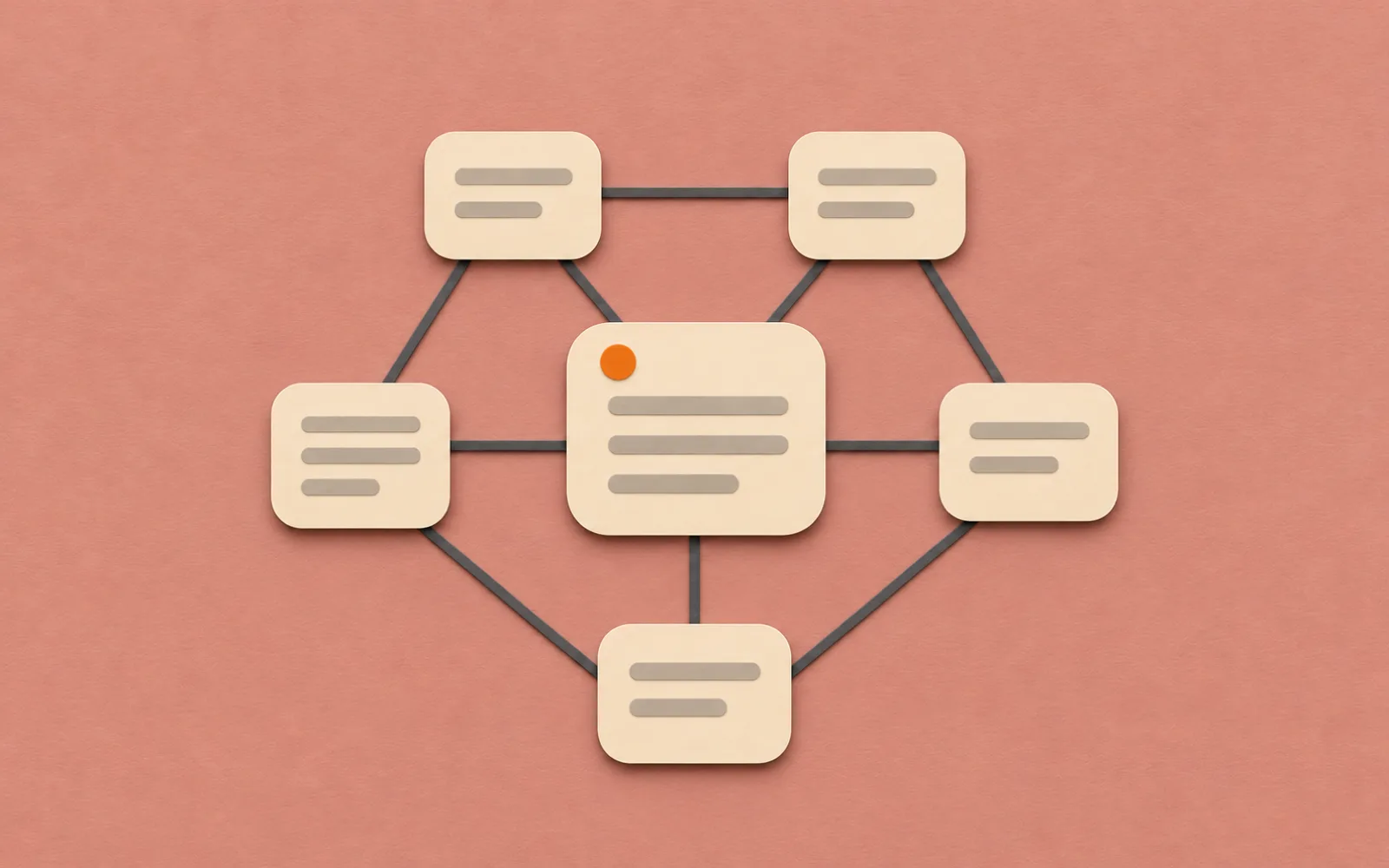
Apple Notes can be your second brain: a place to save things and find them when you need them. Start with an Inbox folder and a pinned Home note, then file what you capture once a week.
Start with four folders
- Mac
On a Mac, select a folder under iCloud in the sidebar, then choose File, New Folder. Repeat for the folders below. Use iCloud notes for this setup, since Apple says some Notes features aren't available with accounts from other providers.
- Inbox holds new notes you haven't filed yet. Put the thought here while you still remember it.
- Projects holds work with a finish, such as Balcony garden. Keep the plan and its next step in a note with that name.
- Reference holds things you expect to reuse, such as plant advice or a watering guide.
- Archive holds finished projects you may want to look up later. Move them here when the work is done.
Start with your next new note. You don't need to sort your whole library first. On a Mac, drag a note from the notes list onto a folder in the sidebar to file it. Add subfolders only when a folder becomes hard for you to browse.
Copy a Home note and pin it
Keep Home in Projects and use it as your starting point. Paste this plain text into a new note, then replace the examples with your own work. The project and reference names are placeholders, so you'll add their links next.
Apple Notes second brain Home note
Home

This week
Choose plants for the balcony

Current projects
Balcony garden

Useful reference
Plants for shade
Watering notes

Weekly review
Read the notes in Inbox
File anything worth keeping
Write the next step in each active project
Move finished projects to Archive
Paste as plain text. Create the project and reference notes, then replace their names here with real note links.
- Mac
- Mac
Create a separate note called Balcony garden. Back in Home, select the placeholder name, choose Edit, Add Link, start typing Balcony garden and select the note. Leave Use Note Title on so the link name updates if you rename the project. Do the same for the reference notes you want to open from Home.
On iPhone or Mac, you can also type >> in a note, then the target note's title, and choose it. Apple's guide to adding links documents the Mac steps. Select Home in the notes list and choose File, Pin Note to keep it at the top of its folder.
Use tags for topics that cross folders
A folder tells you where you filed a note. A tag can group notes you filed in different places. Add #garden to the Balcony garden project and to Plants for shade in Reference. On iPhone, add a space after the tag to activate it. Start with tags you expect to use again, rather than tagging every word you might search for.
- Mac
- iPhone
On a Mac, choose File, New Smart Folder, name it Garden, and choose Tags as its rule. Select the garden tag and click OK. On iPhone, tap New Folder from the folders list, name it Garden, tap Make Into Smart Folder, then choose the tag filter and confirm. You now have one list for the project and its references, while each note stays in its original folder.
This is a saved filter, so you still add the tag yourself. If a note doesn't appear, check that it has the tag and matches the folder's rules.
Capture first, then review the inbox
On a Mac, select Inbox in the sidebar and click the New Note button. Give the note a title you would recognize next month, such as Plants for a north-facing balcony. Add the useful detail and the source link if there is one. Leave filing until your review, unless you already know where the note belongs.
Once a week, open Inbox. Read each note and decide whether you will use it. Move useful material into Reference, and active work into Projects. For each project, write the next step in its plan and add a link from Home if you need it this week. Move finished projects to Archive and remove their links from Home.
Keep a blank project layout if you find yourself writing the same headings each time. On a Mac, File, Duplicate Note makes a copy to fill in. Aim for notes you can act on, such as which plants you chose and why, rather than a folder full of links you haven't read.
Where it stops
Home needs upkeep. A new project won't add itself to your index, and a Smart Folder only lists notes that match its rules. You still decide what to keep and how it changes your plan. Apple Notes also has no list of incoming note links, so linking Plants for shade from a project won't make that project appear on the reference note.
Pinto Notes adds links back and AI access
In Pinto Notes, Linked From in a note's More menu lists the notes that link to it. You can open a reference note and find the projects using it. Only actual links count. The backlinks guide shows how it works. For an outcome you work toward over weeks, keep the milestones and evidence in one goal note.
Once you connect ChatGPT or Claude, it can read and edit your notes. For a weekly review, try asking it to read a project's notes and write a draft of the next steps. Check the draft against the notes and correct it yourself. You can read and edit the notes the AI keeps too.
Your Apple Notes come over in one import on your Mac, and Apple Notes isn't changed.
Questions
Can I use Apple Notes as a second brain?
Yes. Use an Inbox folder for new notes, Projects for active work, Reference for things you will reuse, and Archive for finished work. A pinned Home note links to what matters this week. Review the inbox regularly so you can find what you saved.
Is there an Apple Notes second brain template I can copy?
Copy the Home note on this page into a new note. Replace the example project and reference titles with your own, then add real note links with Edit, Add Link on a Mac, or by typing >> and the target title on iPhone or Mac. Pasted titles alone are plain text.
How do I collect one project's notes across Apple Notes folders?
Give each related note the same tag, such as #garden. On a Mac, choose File, New Smart Folder and add a Tags rule for that tag. The Smart Folder lists the matching notes while they stay in their original folders.
How often should I review my Apple Notes second brain?
Try once a week. File the useful notes from Inbox, update the next step in each project, and move finished work to Archive. Review sooner if you keep saving notes you need for today's work.
Checked against the app on .