Connect notes to Gemini CLI with MCP
Connect Gemini CLI to Pinto Notes over MCP, sign in and approve it on your Mac. Then it can read a brief you wrote on your iPhone and add the session's result to the same note.
Connect Gemini CLI on your Mac
These steps are for Gemini CLI in Terminal on a Mac. Install Pinto Notes and sign in first. Use an installed Gemini CLI for the commands below.
Add the notes server
gemini mcp add --scope user --transport http pinto-notes https://mcp.pintonotes.comRun this in Terminal. User scope makes the connection available across your projects.
Start Gemini CLI with gemini, then enter this inside its session:
Sign in to Pinto Notes
/mcp auth pinto-notesComplete the browser sign-in, then approve the connection when Pinto Notes asks on your Mac.
Google documents the HTTP command and sign-in in its Gemini CLI MCP guide. This walkthrough follows the documentation. We haven't tested a live Gemini CLI connection for this article.
Prefer the extension route? Pinto's README gives this command instead:
Alternative: install the Pinto extension
gemini extensions install https://github.com/pinto-notes/pinto-notesChoose this route or the direct server command above. The prompts below are for either connection.
Google explains installing extensions from GitHub. With that route, use /mcp to find the supplied server name, then /mcp auth to sign in.
Read a brief you saved on your iPhone
Make a note in Pinto Notes on your iPhone called “Contact form fix”. For a first try, use this small example or substitute your own project brief:
An example brief to keep in Pinto Notes
Contact form fix

Show a clear confirmation after a message is sent.
Keep the email address in the form after a failed send.

Session results
Back on your Mac, ask Gemini CLI to find that note. Naming the note makes it easier to check that it found the right one.
Read the brief before working
Find my Pinto Notes note called "Contact form fix" and read it.
Tell me its requirements before changing any code.
If more than one note matches, show me the paths and ask which one to use.
Look for a Pinto search call followed by fetch to read the note. Compare its answer with the two requirements you wrote. A reply that merely repeats your prompt hasn't shown that it read the note.
Append the result to the same note
When you finish a coding session, ask Gemini CLI to save what actually happened. Keep the original requirements above the session results so the next session can read both.
Save the session result
Read "Contact form fix" in Pinto Notes again.
Under "Session results", append today's date, what we changed and the checks we actually ran.
Say plainly which checks we did not run. Keep the requirements and earlier entries unchanged.
Show me the note path when you finish.
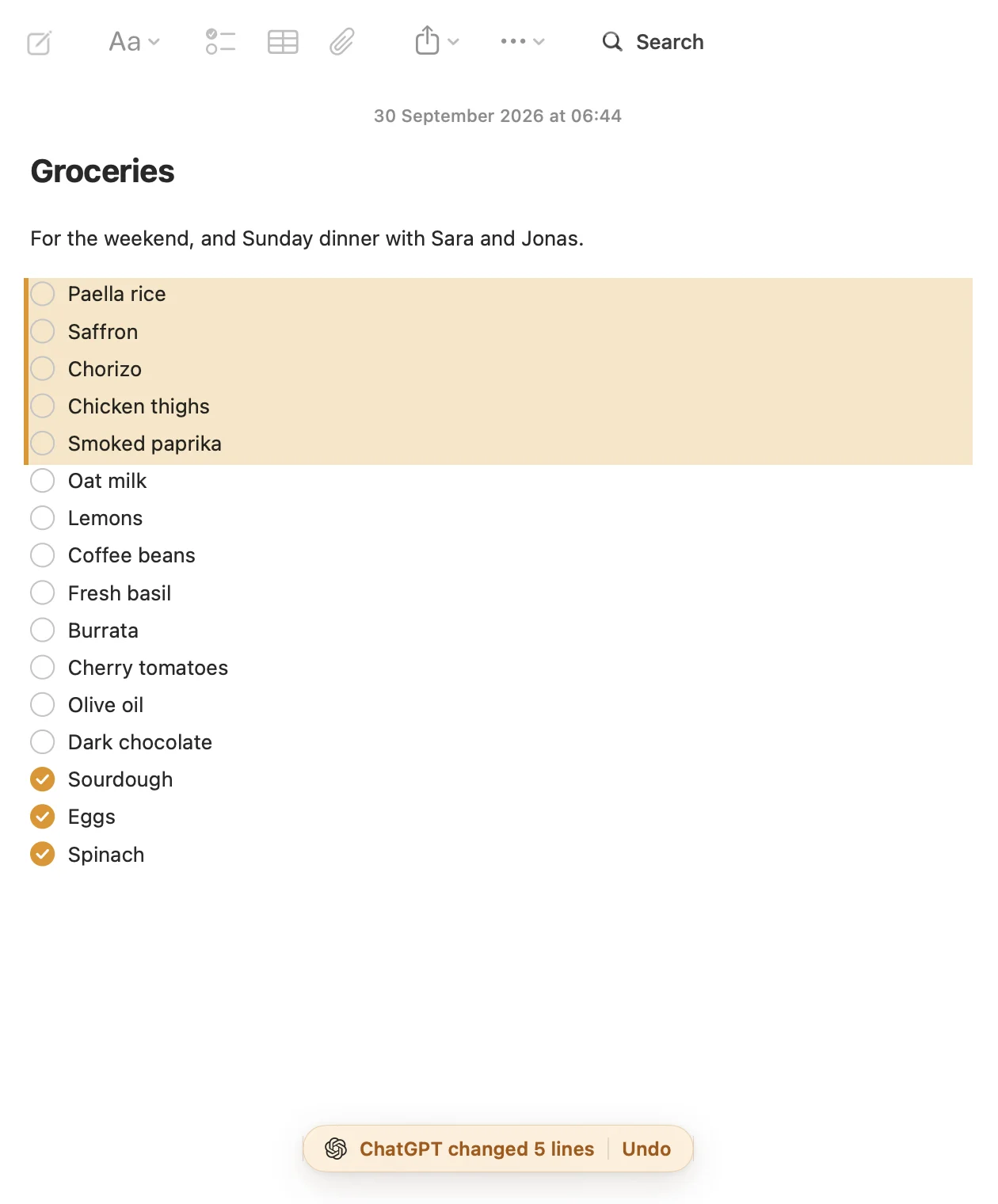
Pinto's edit tool changes matching text in a note it has read. Ask for an addition under a heading, and check the note in Pinto Notes afterward. The previous version stays in history, and AI changes have Undo.
On your iPhone, open the same note and read the new entry. If a check failed or was skipped, keep that in the entry. The next session needs that detail as much as the description of the change.
If the connection needs attention
Type /mcp in Gemini CLI to inspect its servers and tools, or run gemini mcp list in Terminal. If sign-in is needed, use /mcp auth pinto-notes for the direct connection above. For the extension, use the name shown in its server list.
Complete Pinto's approval before asking for a note. Allow covers reading and editing. If the connection works but a title matches several notes, ask for their paths and pick the right one before an edit.
The Pinto Notes MCP server guide lists the note tools. For another coding agent, the Claude Code and Codex guide gives their commands.
Keep the brief and its result together
Pinto Notes looks and works like Apple Notes on iPhone and Mac. You can write the brief yourself, let an approved AI edit it, and return to an earlier version when you need to.
If your notes are in Apple Notes, bring them over in one import on your Mac. Apple Notes stays unchanged.
Questions
What command connects Pinto Notes to Gemini CLI?
Run gemini mcp add --scope user --transport http pinto-notes https://mcp.pintonotes.com. Start Gemini CLI, use /mcp auth pinto-notes to sign in, and approve the connection in Pinto Notes on your Mac.
How can I check whether Gemini CLI found my notes tools?
Type /mcp inside Gemini CLI to inspect the server and its tools. Then ask it to find a note by its exact title and read it. Check the answer against that note in Pinto Notes.
Can Gemini CLI append its result to a note from my iPhone?
Once connected and approved, it can search, read and edit your Pinto Notes. Ask it to read the named note first, then append the result under a heading. The note syncs between your iPhone and Mac.
Checked against the app on .