Move Apple Notes to iCloud from On My iPhone or Gmail

Some of your notes are under On My iPhone or Gmail, so they never show up on your other devices. Moving them into iCloud takes a few taps on iPhone or one drag on a Mac.
See where your notes are

Notes groups folders by account, under headings such as iCloud, On My iPhone and Gmail. The heading a note sits under decides whether it reaches your other devices: only iCloud notes do, with every feature.
On iPhone, go back to the folders list in Notes. On a Mac the same groups are in the sidebar. If it's hidden:
- Mac, macOS 27
- Mac, macOS 26
If there's no iCloud heading at all, Notes is turned off for iCloud. Turn it on here:
- iPhone, iOS 27
- iPhone, iOS 26
If your notes are already under iCloud and still don't reach your other devices, the problem is somewhere else: Apple Notes not syncing between iPhone and Mac finds it.
Before you move anything: what can get lost
Apple's guide warns that moving notes from one account to another can permanently lose formatting and attachments. So keep the originals until you've looked at the moved notes.
| In the note | What Apple says | What to do first |
|---|---|---|
| Formatting and attachments | Can be lost for good in the move | On a Mac, hold Option while you drag. Notes copies instead of moving |
| Drawings | Can turn into image files you can no longer edit as drawings | The same: copy first, then check |
| A lock | Locked notes move only between iCloud and the account on your Mac, and may need unlocking first | Remove the lock, move the note, lock it again in iCloud |
| Sharing | Only iCloud notes can be shared, so a shared note is already there | Nothing |
Apple's iPhone guide describes moving only, with no way to copy. So on iPhone, back up first: notes in On My iPhone are part of your iPhone backup, and how to back up Apple Notes covers the rest.

To take the lock off a note on iPhone, tap the locked note, tap View Note and unlock it, then tap the More button and choose Remove. Each account can have its own notes password. If you've lost the password for a locked note, nobody can open it, and what to do if you forgot your Apple Notes password explains why.
One more thing if you use two Apple Accounts: Apple's Mac guide says a shared note can only move between folders in the same iCloud account.
Move notes on iPhone
- Open the folder that holds the notesFor example Notes under On My iPhone, or Notes under Gmail.
- Tap the More button, then Select NotesTap each note you want to move.
- Tap the Folder button and choose a folder under iCloudThe notes leave the old account and appear in that folder.

For a single note, touch and hold it, tap Move and choose the folder. To bring a whole folder across, create a folder with the same name under iCloud and move its notes into it.
Move notes on a Mac
- Select the notes in the listThey can come from On My Mac, Gmail or any other account in the sidebar.
- Drag them onto a folder under iCloud in the sidebar, or Control-click and choose Move toHold Option as you drop to get copies and keep the originals.

On My Mac is the Mac's own local account, like On My iPhone. Once it's empty you can turn it off by clearing Enable the On My Mac account in Notes, Settings. Notes won't turn it off while it still holds notes, and asks you to move or delete them first.
Gmail notes are different
Notes in a Gmail account are kept in your Google account and sync with Notes over IMAP, the protocol Mail uses. Apple says many Notes features don't work there. What that means in practice:
- They can't be locked.
- On macOS 26, Notes turns down tags and pinning in an IMAP account, with a message saying they aren't supported.
- When you delete one, Gmail usually keeps it in that account's Trash in the Mail app rather than in Recently Deleted.

Apple says notes moved from another account into iCloud can use every feature. To stop the Gmail account syncing notes once it's empty, turn off Notes for it. Mail keeps working, and any notes still in Gmail stay in your Google account.
- iPhone
After the move
Four things, and the first is the one people skip.
After moving notes to iCloud
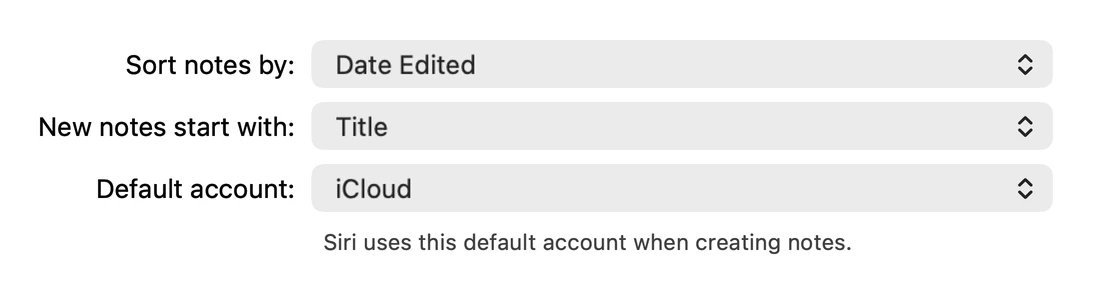
- Set iCloud as the default account, so Siri and the widget stop using the old one
- Open a few moved notes and check the formatting, attachments and drawings
- Lock again the notes you unlocked for the move
- Turn off Notes for the Gmail account, or On My Mac, once it's empty
Copy gives you plain lines. In Apple Notes, select them and tap the checklist button.
The default account is set here:
- iPhone
- Mac
Moving also changes what your iPhone's iCloud backup holds. Notes in On My iPhone are part of it, and Apple leaves out notes that are already stored in iCloud. Deleting a note in iCloud removes it from every device after 30 days in Recently Deleted, so keep a copy of your own as well.
A notes app without accounts to sort out
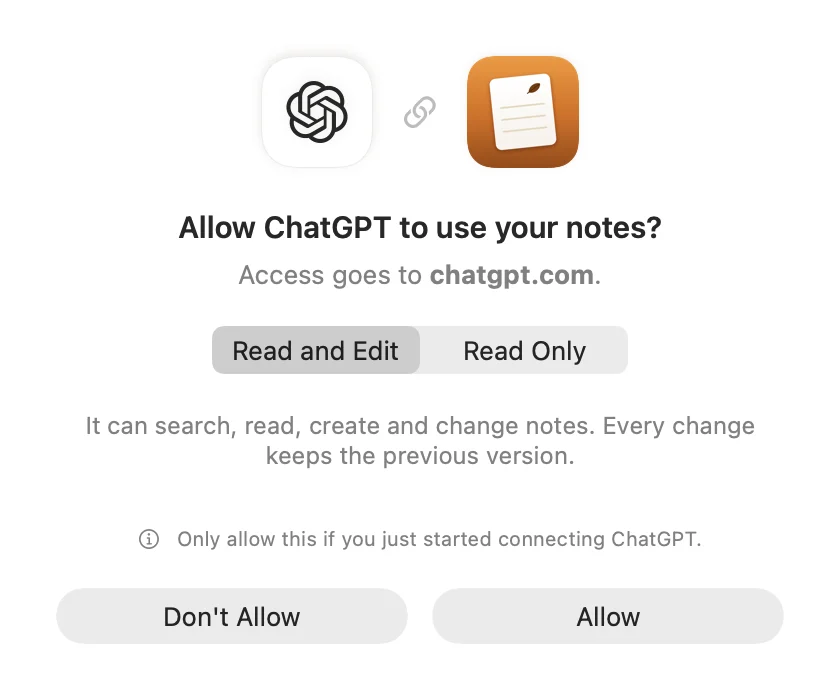
Pinto Notes, the notes app for iPhone and Mac that I make, has no On My iPhone and no mail accounts. You sign in once, and every note syncs between your devices. ChatGPT and Claude can read and edit those notes after you approve them.
It won't tidy up Apple Notes for you, and it has no Windows, Android or web version. Moving from Apple Notes takes one import on your Mac and leaves Apple Notes as it was.
Questions
Why are some of my notes in On My iPhone?
On My iPhone is an account for notes kept only on that phone. It appears once it's turned on in Settings, Apps, Notes, and new notes made by Siri or the Notes widget go to whichever account is set as the Default Account there.
Will moving notes to iCloud remove them from my iPhone?
No. iCloud notes stay on your iPhone and also appear on every other device signed in to the same Apple Account with Notes turned on for iCloud.
Can I move Gmail notes to iCloud?
Yes. Gmail notes show up as their own account in Notes, and you move them into an iCloud folder the same way as notes from On My iPhone. Afterwards you can turn off Notes for the Gmail account.
Why can't I lock my Gmail notes?
Apple says notes that sync over IMAP, with accounts like Gmail and Yahoo, can't be locked. Once a note is in iCloud you can lock it, unless it has tags or a file attached, such as a PDF or a recording.
Checked against the app on .