Notes app for writers: six options for your drafts
Apple Notes suits ideas and short drafts. Bear adds writing statistics, Pinto Notes adds version history and connected AI, and Obsidian keeps research as linked files. For a whole manuscript, consider Ulysses or Scrivener.
Six apps for different kinds of writing
| App | Writing fit | Drafts and earlier text | Getting text out |
|---|---|---|---|
| Apple Notes | Ideas and short drafts | Duplicate a note before rewriting | Selected note as PDF or Markdown on Mac |
| Pinto Notes | Apple Notes feel with AI access | Version history with restore | Library as Markdown in a ZIP; PDF on Mac |
| Bear | Markdown drafts with word count | Manual library backups | Markdown; DOCX, PDF and ePub need Pro |
| Obsidian | Research linked to drafts | Local recovery snapshots; Sync has separate history | Notes are already Markdown files |
| Ulysses | Focused writing with goals | Automatic local library backups | DOCX, PDF, ePub, HTML or text |
| Scrivener | Chapters and research in one project | Take Snapshots before revisions | Compile into Word, PDF or ePub |
These are different ways to preserve work. A library backup, a recovery snapshot and a copy you make before editing are not interchangeable.
Apple Notes for writers who want to start there
Apple Notes saves as you type. A folder per project and a note per scene or article is a workable starting point. Keep research in separate notes so you can find a source without searching through a draft. Tags and pinned notes help keep an outline easy to find.
To make an index on a Mac, write the scene titles in one note. Select a title, choose Edit, Add Link and pick its note. Before a substantial rewrite, select the draft and choose File, Duplicate Note. Give the copy a date and a clear name. That is a manual way to preserve a draft. The Apple Notes version-history guide explains the limits of recovering earlier text. If you write for audio, you can keep guest questions and show notes in a podcast planning note.
To hand a draft to another editor on a Mac, select the note, then choose File, Export To, PDF or Markdown. The Markdown export guide covers what to check in the result. If you need a manuscript word target or a book export, compare the writing apps below.
Pinto Notes for earlier drafts and connected AI
Pinto Notes looks and works like Apple Notes on iPhone and Mac. It keeps notes as Markdown and has version history. On a Mac, open File, Version History, select an earlier version and choose Restore This Version to put its text back. Restoring keeps the text it replaces as another version too.
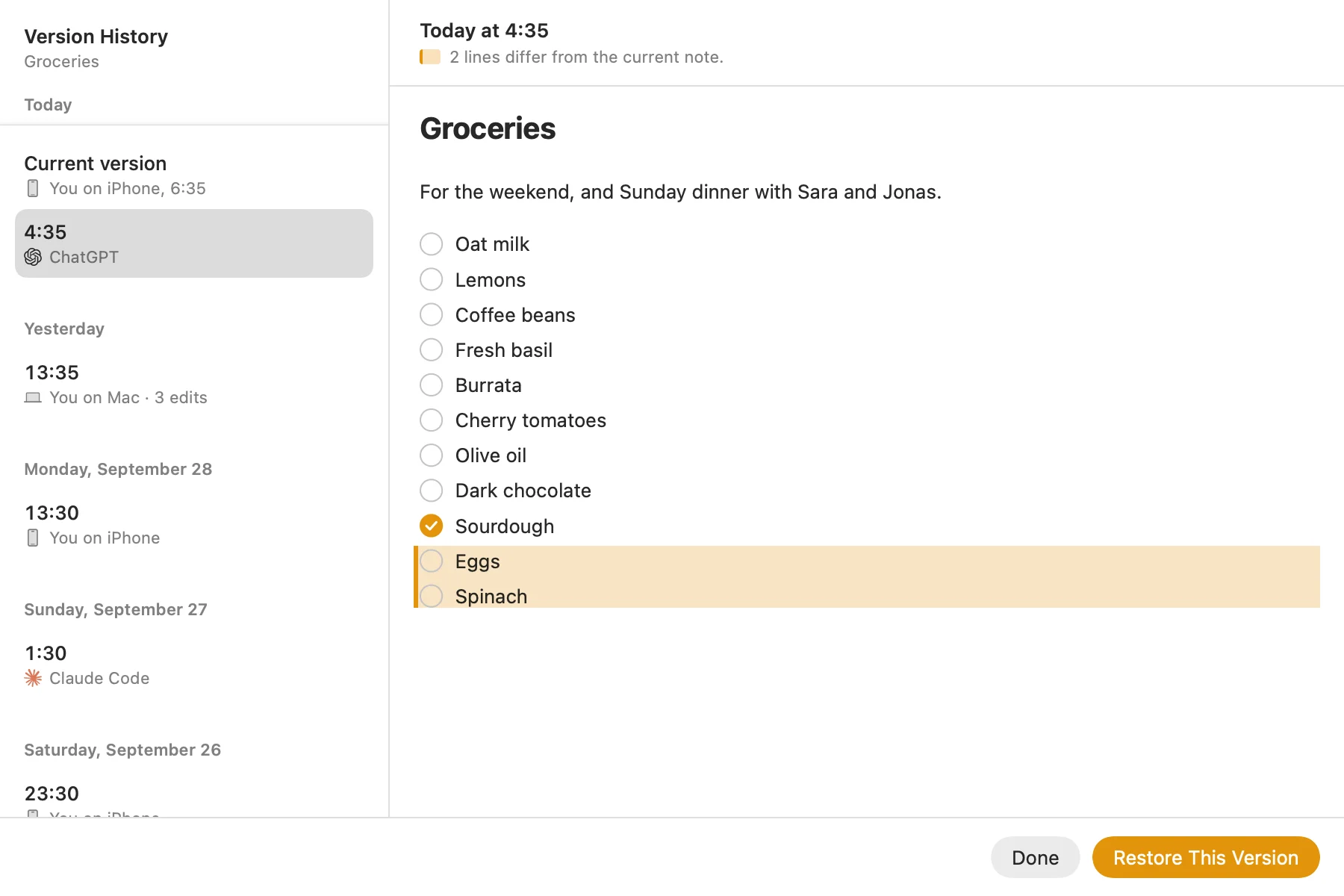
Once you connect ChatGPT or Claude, it can read and edit your notes. You can ask it to read your research notes before suggesting an outline, then review the result yourself. Keep the source notes so you can check quotations and factual claims.
On a Mac, File, Export All Notes saves a ZIP of Markdown files in their folders. Unlock any locked notes first to include them. File, Export as PDF saves the open note as a PDF. Those routes suit a draft you will finish elsewhere. If your handoff needs a Word document or an ebook, Ulysses and Scrivener offer those formats directly.
Pinto Notes is Apple only, on iPhone and Mac, with no Windows, Android or web app. Your Apple Notes come over in one import on your Mac, and Apple Notes isn't changed.
Bear for Markdown drafts with a word count
Bear combines Markdown with tags for organizing notes. Its Info Panel shows the word count and estimated reading time. On a Mac, Edit, Typewriter Mode keeps the line you are writing in the center of the editor. You can also hide the sidebar and note list to leave more room for the draft. See Bear's getting-started guide and typewriter-mode instructions.
Markdown export is available in Bear's free version. DOCX, PDF and ePub export need Pro. Bear also documents manual library backups. Restoring one replaces the current library, so treat that as a different tool from restoring a single paragraph. Check its export formats and backup instructions before moving your drafts.
Obsidian for research kept as linked files
Obsidian stores notes as plain Markdown files in an ordinary folder. You can link a source note to a draft and open the files in another text editor. Its core Word count plugin shows the active note's word and character counts. This suits a writer who wants to manage the research files as well as write in them. Obsidian documents its file storage and word counter.
File recovery keeps local snapshots for seven days by default. They stay on the device that made them, and Obsidian says they are not a complete backup. Obsidian Sync has separate version history. Read the recovery limits and keep a separate backup of your work.
Ulysses and Scrivener for longer writing
Ulysses for focused drafting and writing goals
Ulysses is a writing app more than a notes app. Its focused editor and projects suit articles or a manuscript in sections. You can set word goals for a sheet, group or project, including daily goals. It exports DOCX, PDF and ePub, as well as HTML and text. See its writing goals and export guide.
Automatic backups preserve the library locally. They do not sync between devices, and External Folders are excluded. Those details matter if you keep drafts outside the library. Ulysses explains how to restore work in its backup guide.
Scrivener for assembling a manuscript
Scrivener is also a writing app more than a notes app. Write in sections, rearrange them, and keep research beside the draft. Composition mode hides the rest of the interface. Word targets can apply to the manuscript, a section or a writing session. Before a rewrite, take a Snapshot so you can compare or return to that text later.
Compile assembles sections into a document, including Word, PDF or ePub. That is useful when separate scene drafts need to become one manuscript. Try compiling a sample before committing a whole project to it. The maker's Scrivener overview describes these tools.
Try one complete draft before switching
Use a short piece you are already working on. Write for twenty minutes with the editor arranged as you prefer, then revise a paragraph and recover its earlier wording. Export the draft and open it where you will submit or publish it. Choose the app that handles those steps with the least work for the kind of writing you do.
Writing in Simplenote now? Here is how to export your notes and move them.
Questions
Can I use Apple Notes to draft a novel?
Yes. Keep one note per scene and an index note linking to them. On a Mac, File, Duplicate Note makes a separate draft before a rewrite. For manuscript word targets and assembling chapters into a book, consider Ulysses or Scrivener.
Which notes apps show a writer's word count?
Bear shows it in the Info Panel. Obsidian has a core Word count plugin. Ulysses and Scrivener are writing apps with word targets as well as counts.
Is a notes app enough for writing articles?
It can be. Try drafting and exporting one complete article before moving your library. Check how you will save earlier drafts and whether the exported file works in the editor or publishing system that receives it.
Checked against the app on .