Apple Notes vs Bear: choosing where to write

Choose Apple Notes for shared lists and folders. Choose Bear if you prefer writing in Markdown and organizing notes with nested tags. Here's what changes when you switch, including sync and moving your notes.
At a glance
| What matters to you | Apple Notes | Bear |
|---|---|---|
| Organization | Folders, tags and Smart Folders | Tags, including nested tags such as #work/project |
| Writing | Formatted notes with checklists and tables | Markdown editor with tables, todos and themes |
| Links | Edit, Add Link connects notes | Wiki links, backlinks and links to headings |
| Sync | iCloud, with Notes enabled on each device | iCloud with Bear Pro |
| Export on Mac | PDF or Markdown | Markdown and other formats; PDF and Word need Pro |
Bear has a free version for local notes. Bear Pro is US $2.99 a month or $29.99 a year on its official pricing page, read 21 November 2026. Pro also adds search inside images and PDFs, and more themes.
Choose Apple Notes for folders and shared notes
If you want a Work folder and a Home folder, Apple Notes already gives you that structure. Add checklists or tables inside a note, pin a note you use often, and use tags when something belongs to more than one topic. A Smart Folder gathers notes by rules, such as a tag or an unchecked checklist.
For a grocery list you edit together or a shared project note, Apple documents collaboration on notes and folders through iCloud. Everyone needs an Apple Account. You can give people permission to edit or to view. For your own notes to appear on both devices, sign in to the same Apple Account and turn on Notes in iCloud settings.
Try those tools before moving a whole library. If the missing piece is seeing which notes link back to the one you're reading, Bear's Backlinks panel is a reason to switch. If it's finding unfinished tasks, a Smart Folder may be enough.
Choose Bear for Markdown and linked writing
Bear puts Markdown in the editor. Its Info panel has a table of contents built from your headings, so you can jump to a section of a long draft. Type [[ to find another note and link it. The Backlinks tab lists notes that link to the one you're reading, and notes that mention its title without a link. Bear explains both in its Info panel guide.
Organization takes a different habit. Add #work/project to nest project under work, and add another tag when a note belongs in several places. Click a tag in the sidebar to see its notes. Try this with a handful of real notes before importing everything.
Markdown editing doesn't mean Bear keeps a folder of Markdown files on your disk. Bear says its notes live in a database. Its export tools can save several notes at once as Markdown, even in the free version. Pro adds formats including PDF, Word and HTML. Apple Notes can export Markdown too.
Bear also has AI connections. In Bear 2.8 or later on a Mac, Help, Advanced, Install Claude Connector sets up access for Claude desktop. A local MCP server and command-line tool support other tools. Bear's official instructions describe reading and editing notes, plus tag filters that limit access. These tools are Mac only and cannot read or modify encrypted notes.
Moving between Apple Notes and Bear
To try Bear, export a note from Apple Notes on a Mac as Markdown. On macOS 27, choose File, Export To, Markdown. Bear's migration guide then uses File, Import From, Markdown Folder to read the exported folder. Its older Automator route changes task lists into bullet lists and leaves out attachments other than photos, so check which route applies to your Mac.
Choosing for long drafts? Notes apps for writers adds Ulysses and Scrivener to the list.
Going back, select notes in Bear and choose File, Export Notes, then Markdown. In Apple Notes on a Mac, choose File, Import Markdown and select the files. Apple's import and export guide also describes preserving a folder's structure on import. Bear's wiki links work inside Bear, so check those links in the imported notes.
Start with notes containing a picture, a table and a checklist. Open the imported copies and check the details you rely on. Keep the originals while you try the new app. Exporting and importing copies notes; it doesn't set up ongoing sync between apps.
Apple Notes' feel, with your AI connected
Pinto Notes looks and works like Apple Notes on iPhone and Mac. Your notes are Markdown files, and every earlier version is kept. Once you connect ChatGPT or Claude, it can read and edit the notes themselves. You can ask it to update a list or rewrite a draft without copying the text back into your notes.
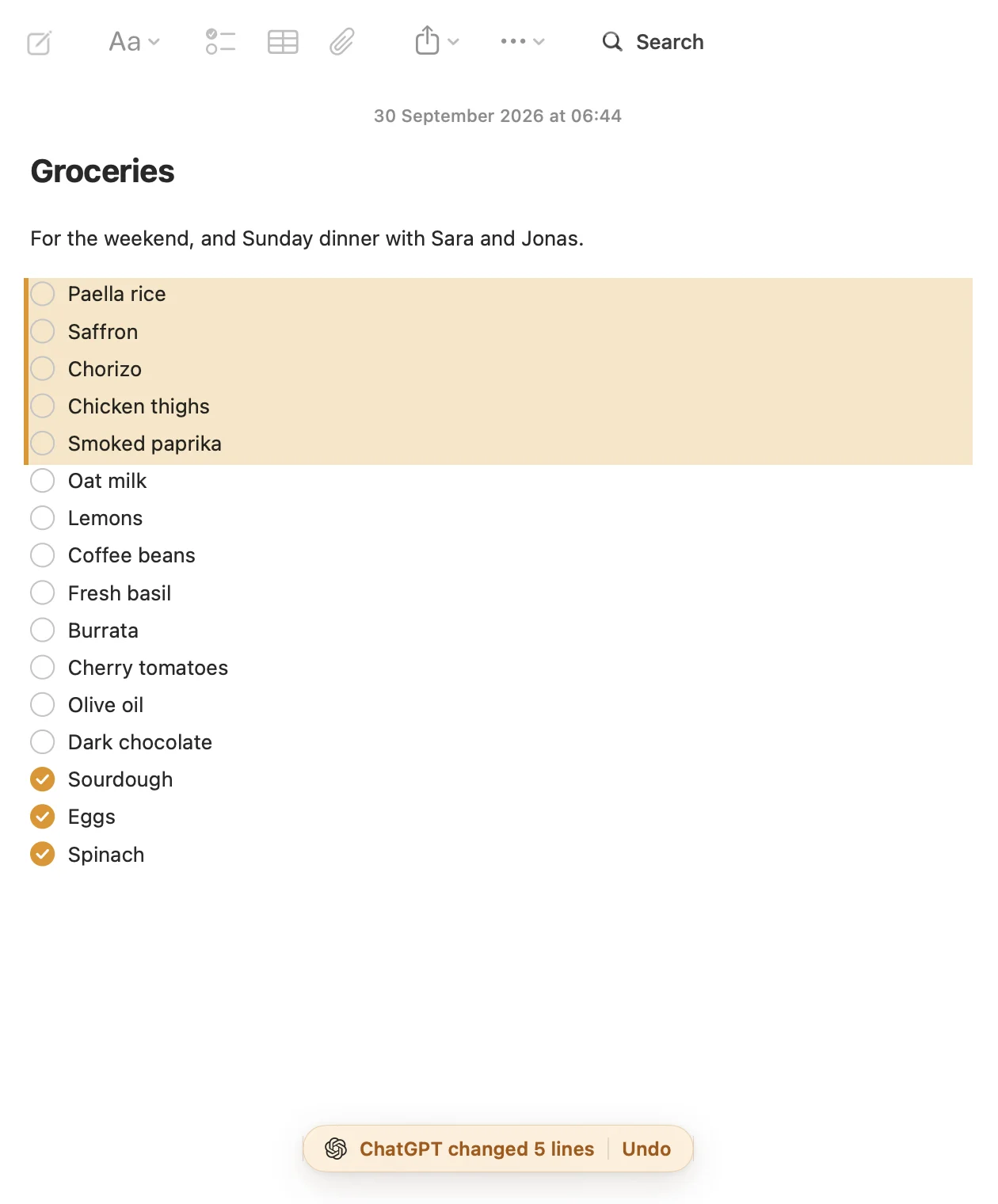
Coming from Bear: export your notes as Markdown with attachments, then choose the folder. Pictures come too. That's the Bear route in Pinto's import guide, on a Mac. Coming from Apple Notes, bring your notes over in one import on your Mac. Apple Notes isn't changed.
Want to stop paying for Bear Pro? See the free alternatives to Bear on Mac and iPhone.
Questions
Should I use Bear or Apple Notes for writing?
Choose Bear if you want to write in Markdown, navigate long notes through a table of contents, and connect notes with backlinks. Choose Apple Notes if folders and shared iCloud notes are more useful to you. Both have tables and checklists.
Do I need Bear Pro to sync with my iPhone?
Yes. Bear's free version gives you local access to your notes. Sync with iCloud needs Bear Pro, listed at US $2.99 a month or $29.99 a year on Bear's pricing page on 21 November 2026.
Can I move Bear notes into Apple Notes?
Yes. Export the notes from Bear as Markdown, then on a Mac choose File, Import Markdown in Apple Notes and select the exported files. Test notes with pictures, tables and links before moving the rest. Bear's wiki links are specific to Bear.
Does Bear let Claude edit my notes?
Yes. Bear 2.8 or later has a Claude Connector for the Claude desktop app on a Mac, plus a local MCP server and command-line tool. They can search, read, create and edit notes. Bear says encrypted notes cannot be read or modified by these tools.
Checked against the app on .