Apple Notes expense tracker: a log that adds itself up

A spending log works like this: you write it down when you pay, and the month adds up at the end. Apple Notes can hold that log and do the totals. Here's a template to paste in, how to keep it going, and where it stops.

The template: a log with totals under it
The note has two parts. The table is the log: one row for each thing you buy, so you can see later what the money went on. The lines under it do the sums, because Notes can't add up a table. Each category gets a name and the amounts that belong to it, and the last line adds the names together.
Expense tracker for Apple Notes
Expenses, November

Date	What	Category	Amount
1 Nov	Weekly shop	Groceries	412
2 Nov	Bus card	Transport	85
3 Nov	Pizza with friends	Dining	230
5 Nov	Light bulbs	Household	64
6 Nov	Weekly shop	Groceries	238
8 Nov	Cinema	Fun	150

Groceries = 412 + 238
Transport = 85
Dining = 230
Household = 64
Fun = 150

Groceries + Transport + Dining + Household + Fun =
Each table line has a tab between the columns. Paste it, then turn those lines into a table. Notes offers the total after the last equals sign; press Return to keep it.
Change the categories to yours. A category name is one word in the Latin alphabet (Dining, not Eating out), and Notes needs it written above the line that uses it, which is why the categories come before the total.
Set it up
- Mac
- Mac
- Paste, then make the table. Paste the template into a new note, select the seven lines from Date to the last expense, and press the Table button. Every tab becomes a column, so you get Date, What, Category and Amount side by side.
- Check Math Results. On a Mac, Format, Math Results has three settings: Suggest Results (the default, where Return keeps the answer), Insert Results and Off. If the total doesn't appear, it's set to Off.
- Use an iCloud note. Apple says math works in upgraded iCloud notes and in notes stored on your Mac.
- One note per month. On a Mac, File, Duplicate Note copies last month's note. Delete the rows, reset each category line, and change the title.
Tables in Apple Notes goes through what a table can and can't do, with pictures of the sum that stays as text inside one.
Day to day
- Log it when you pay. Tab in the last cell adds a row. Write the date, what it was, the category and the amount.
- Add the amount to its category. Put + 96 on the end of the Groceries line, and the total at the bottom follows. On iPhone, Notes answers sums as you type the equals sign too.
- Pin the note. Pinned to the top of its folder, this month's log is the first thing you see when you open Notes.
- Find a purchase later. Search reads every word in every note, so “cinema” finds the month you went.
A log tells you what you spent. To set a limit for each category first and see what's left, use the Apple Notes budget template alongside it: the plan in one note, the log in this one. For things you're thinking of buying, keep a separate wishlist with a waiting date until you decide.
Where an Apple Notes expense log stops
- Every amount is typed twice. Once in the table and once on its category line. Forget the second and the total is wrong, with nothing to tell you.
- The table doesn't sort or add up. You can't sort by amount or category, and a total inside the table stays as text.
- Months stay apart. Comparing November with October means opening two notes and reading both.
- Bills that repeat are typed by hand into every month's note.
For a few dozen purchases a month, the note holds up. Past that, the category lines get long and checking them against the table takes longer than the logging.
An expense log your AI fills in
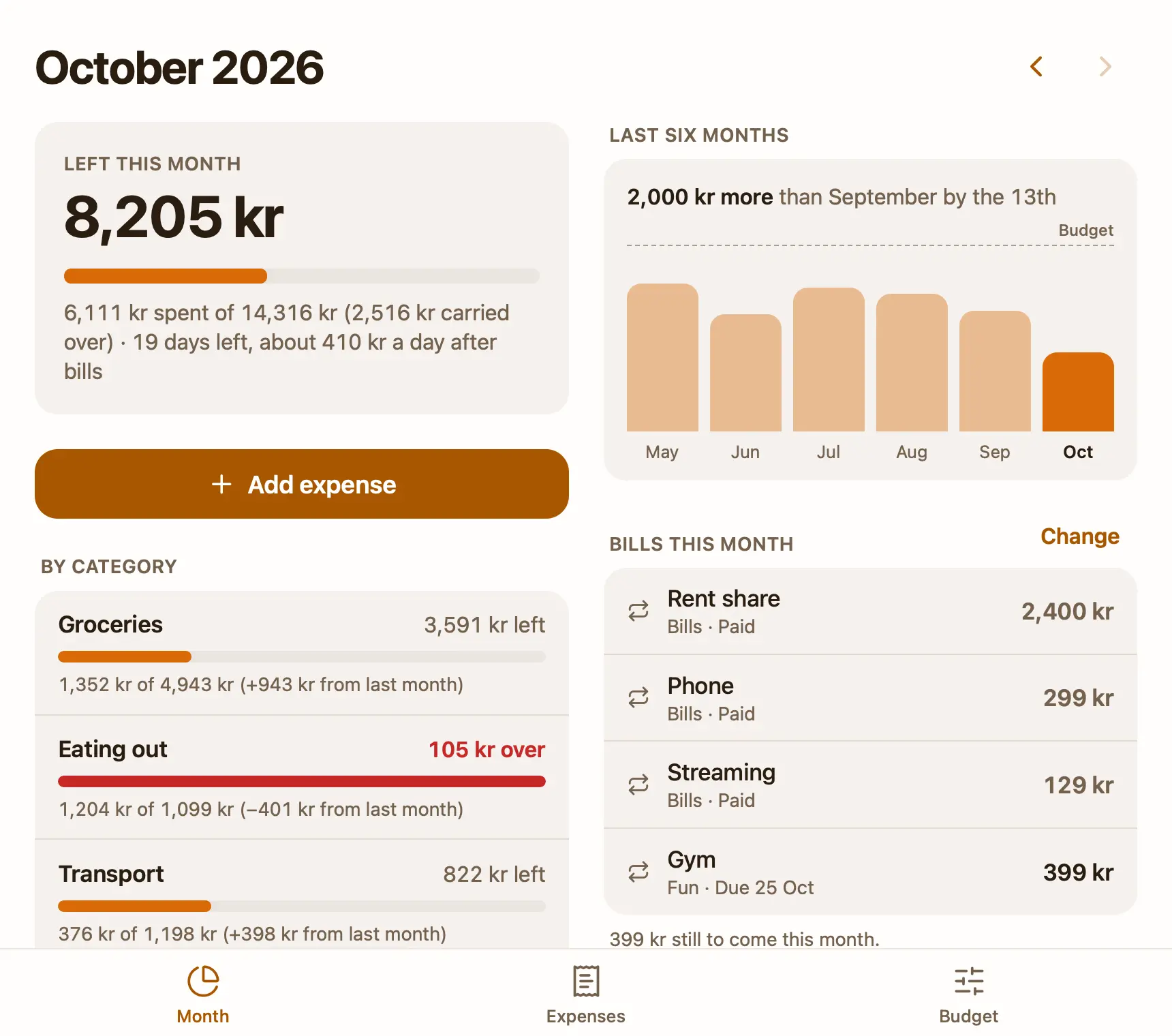
Pinto Notes looks and works like Apple Notes on iPhone and Mac, and a note can also be a small app. The free Budget and expenses template is one. You set a monthly budget per category once, then add each expense with one tap, starting with the amount. Every expense of the month is listed by day, and you can edit or delete one, with Undo. Monthly bills are added on their day, and the note shows what's left this month, each category against its budget and the last six months. The app does the sums, so each amount is typed once.
Once ChatGPT or Claude is connected, you can also say “412 on groceries and 85 on the bus card” in the chat you already use, and it logs both with the date, what, category and amount. Ask “How am I doing against the budget this month?” or “What did we spend on eating out last month?”, and a month's summary lands in the note itself. It doesn't connect to your bank. Connecting ChatGPT takes a minute, and a budget your AI can keep for you shows the whole flow.
Your Apple Notes come over in one import on your Mac, and Apple Notes isn't changed.
Questions
Can I track expenses in Apple Notes?
Yes. Keep a table of what you spent, one row per purchase, and under it one line per category, like Groceries = 412 + 238. A last line that adds up the category names and ends in an equals sign gets the total from Math Results.
Is there an expense tracking template for Apple Notes?
Apple Notes has no templates of its own. Paste the template on this page into a new note, turn the tab-separated lines into a table, and duplicate the note each month on a Mac with File, Duplicate Note.
Why doesn't Math Results work in my expense table?
Math Results is greyed out while you're in a table, so a sum typed in a cell stays as text. Put the category lines and the total under the table, and Notes answers them there.
Can ChatGPT or Claude log my expenses into a note?
Not into Apple Notes. In Pinto Notes, once ChatGPT or Claude is connected, you say what you spent and it adds the expense to the Budget and expenses template, which does the sums itself.
Checked against the app on .